> ## Documentation Index
> Fetch the complete documentation index at: https://manuals.cobo.com/llms.txt
> Use this file to discover all available pages before exploring further.
# Set up Cobo Guard
> A step-by-step guide on setting up Cobo Guard for secure multi-factor authentication, essential for protecting your crypto accounts.
To use Cobo Guard, it is essential to set up a passcode on your iOS device. Ensure that the passcode remains enabled, as disabling it will prevent you from using Cobo Guard.
This guide describes how to set up Cobo Guard and link it to your Cobo Accounts to use it as a multi-factor authentication (MFA) method for login and operation approval.
1. After downloading Cobo Guard, open the app and you will be prompted to set up a PIN code for your iOS device.
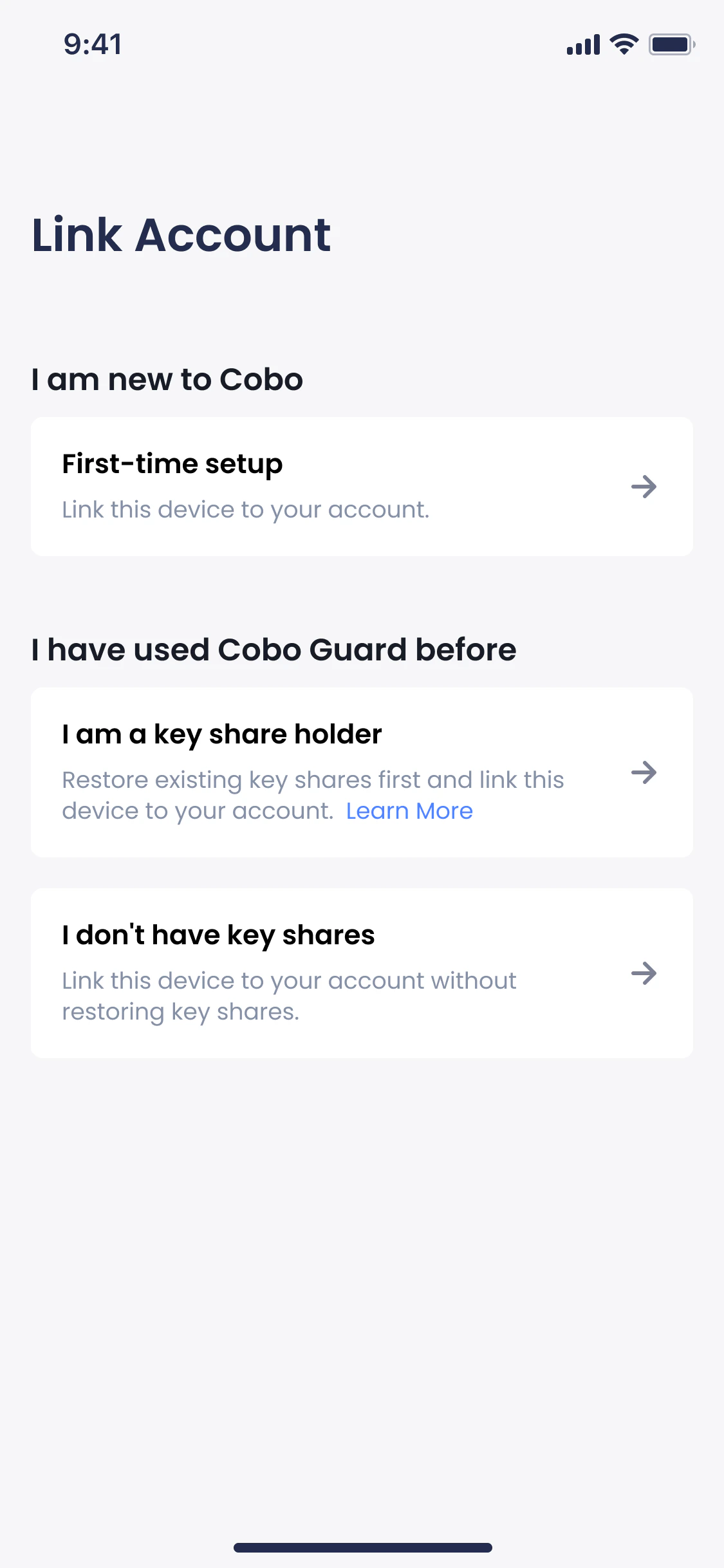
2. After setting up the PIN code, you will be prompted to select your case. Select **First-time setup**.
 3. On your web browser, log in to your [Cobo Accounts](https://accounts.cobo.com/).
4. In the **MFA Management** section, click **Add** next to **Cobo Guard**.
3. On your web browser, log in to your [Cobo Accounts](https://accounts.cobo.com/).
4. In the **MFA Management** section, click **Add** next to **Cobo Guard**.
 Once you set up Cobo Guard as an MFA method, it will be automatically used as a login method.
5. On the **Download Cobo Guard** page, click **Continue**.
6. On the **Set Up Cobo Guard** page, you will see a QR code.
7. Open your Cobo Guard app and tap
Once you set up Cobo Guard as an MFA method, it will be automatically used as a login method.
5. On the **Download Cobo Guard** page, click **Continue**.
6. On the **Set Up Cobo Guard** page, you will see a QR code.
7. Open your Cobo Guard app and tap  to scan the QR code.
8. On your Cobo Guard, you will see a **Link Cobo Accounts** page. Click **Link**.
You have now successfully linked Cobo Guard to your Cobo Accounts and now you can use it as an MFA method for login and operation approval. On your web browser, click **Continue** to go back to the Cobo Accounts page.
to scan the QR code.
8. On your Cobo Guard, you will see a **Link Cobo Accounts** page. Click **Link**.
You have now successfully linked Cobo Guard to your Cobo Accounts and now you can use it as an MFA method for login and operation approval. On your web browser, click **Continue** to go back to the Cobo Accounts page.