> ## Documentation Index
> Fetch the complete documentation index at: https://manuals.cobo.com/llms.txt
> Use this file to discover all available pages before exploring further.
# Reset Cobo Guard after device change or reinstallation
> Follow the updated reset process to restore Cobo Guard after a device change or reinstallation, ensuring secure and reliable access.
If you are switching to a new iOS device, have lost access to your old device, or have reinstalled Cobo Guard, you will need to reset Cobo Guard on your new device to continue using it normally.
To avoid potential risks, we do not recommend uninstalling and reinstalling Cobo Guard on your device. If you mistakenly do so, you must also reset Cobo Guard. In this scenario, both “old device” and “new device” in this documentation refer to the same device.
Choose the relevant section to read depending on whether you have created a key share:
* [For Cobo Guard users who are key share holders](#key-share-holders)
* [For Cobo Guard users who haven't created key shares](#non-key-share-holders)
## For Cobo Guard users who are key share holders
Linking your new device restores your ability to log in, but it does not restore your key share. If you skip or do not complete the key share restore steps below, you can still log in to Cobo Accounts and Cobo Portal, but you will stop receiving signing and transaction approval requests without any notification. Complete the key share restore for every TSS Node ID shown in Cobo Accounts, and then go to  → **My Public Key** to confirm that each restored TSS Node ID matches the one shown in Cobo Accounts.
### Reset decision guide for key share holders
If your Cobo Guard serves as a key share holder and participates in MPC Wallet key management, please refer to the decision diagram below before resetting.
Note: This diagram does not represent the actual UI flow. The UI will guide you based on the device and backup information you select, and show only the steps that apply to your situation (see the next section **Steps to reset Cobo Guard for key share holders**). However, it may not cover certain edge cases. This diagram provides a complete overview of all possible key share recovery paths for your reference.
→ **My Public Key** to confirm that each restored TSS Node ID matches the one shown in Cobo Accounts.
### Reset decision guide for key share holders
If your Cobo Guard serves as a key share holder and participates in MPC Wallet key management, please refer to the decision diagram below before resetting.
Note: This diagram does not represent the actual UI flow. The UI will guide you based on the device and backup information you select, and show only the steps that apply to your situation (see the next section **Steps to reset Cobo Guard for key share holders**). However, it may not cover certain edge cases. This diagram provides a complete overview of all possible key share recovery paths for your reference.
 ### Steps to reset Cobo Guard for key share holders
1. [Download Cobo Guard](/en/guard/download) on your new device.
2. On the web, go to the **MFA Management** section of [Cobo Accounts](https://accounts.cobo.com/) and click **Complete** on the Cobo Guard reset notice.
### Steps to reset Cobo Guard for key share holders
1. [Download Cobo Guard](/en/guard/download) on your new device.
2. On the web, go to the **MFA Management** section of [Cobo Accounts](https://accounts.cobo.com/) and click **Complete** on the Cobo Guard reset notice.
 3. You will be guided through a series of selections about your device and key share backup (starting with the first screen shown below), and the system will then present the actions that apply to your situation.
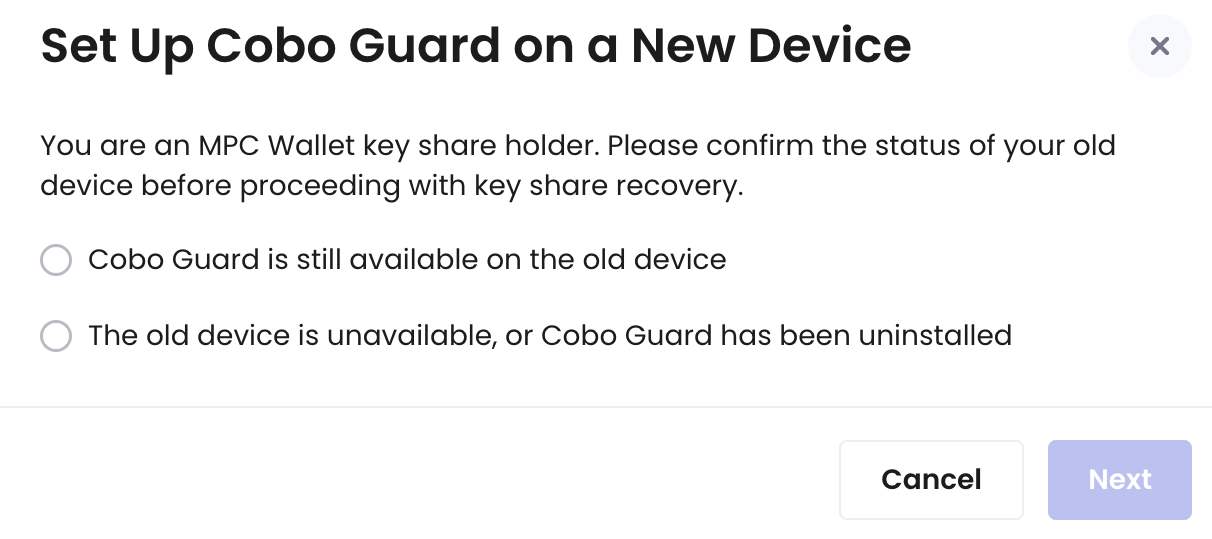 Follow the instructions for the scenario that applies to your situation.
* [**Scenario 1: Old device available**](#scenario1): Cobo Guard is still accessible on your old device.
* [**Scenario 2: Old device unavailable + backup available**](#scenario2): Your old device is lost or Cobo Guard has been uninstalled, but the key share was previously backed up and you remember the iCloud account and recovery passphrase.
* [**Scenario 3: Old device unavailable + no valid backup**](#scenario3): Your old device is lost or Cobo Guard has been uninstalled, and you either never created a backup or no longer remember the iCloud account or recovery passphrase for the backup.
#### Scenario 1: Old device available
If Cobo Guard is still available on your old device, you will be prompted to complete the following items.
Follow the instructions for the scenario that applies to your situation.
* [**Scenario 1: Old device available**](#scenario1): Cobo Guard is still accessible on your old device.
* [**Scenario 2: Old device unavailable + backup available**](#scenario2): Your old device is lost or Cobo Guard has been uninstalled, but the key share was previously backed up and you remember the iCloud account and recovery passphrase.
* [**Scenario 3: Old device unavailable + no valid backup**](#scenario3): Your old device is lost or Cobo Guard has been uninstalled, and you either never created a backup or no longer remember the iCloud account or recovery passphrase for the backup.
#### Scenario 1: Old device available
If Cobo Guard is still available on your old device, you will be prompted to complete the following items.
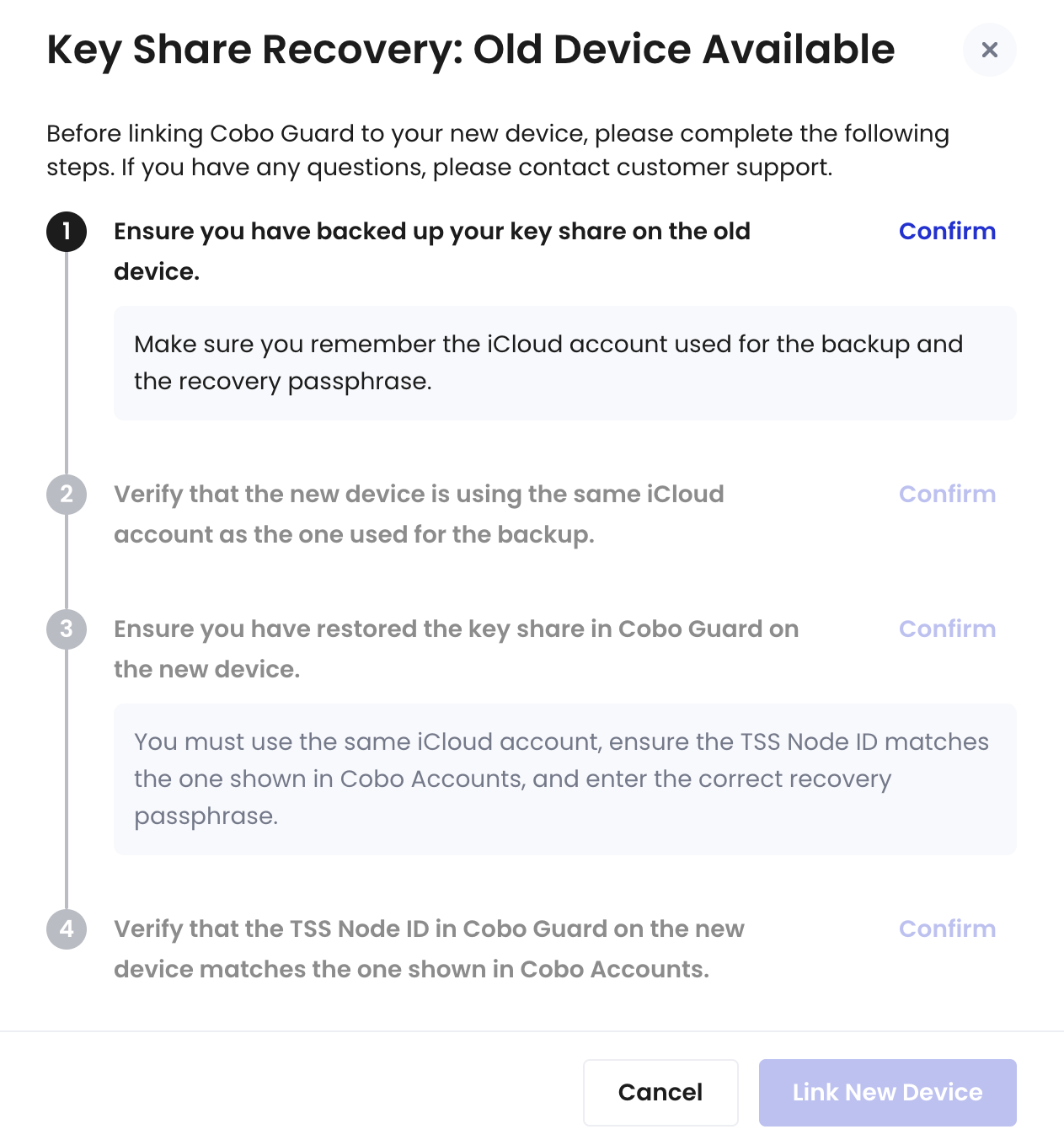 For step 1 (backing up your key share or checking your backup file), see [Back up your key share](/en/guard/generate-and-back-up-key-shares#back-up-your-key-share).
For step 3 (restoring your key share), below are detailed instructions:
For step 1 (backing up your key share or checking your backup file), see [Back up your key share](/en/guard/generate-and-back-up-key-shares#back-up-your-key-share).
For step 3 (restoring your key share), below are detailed instructions:
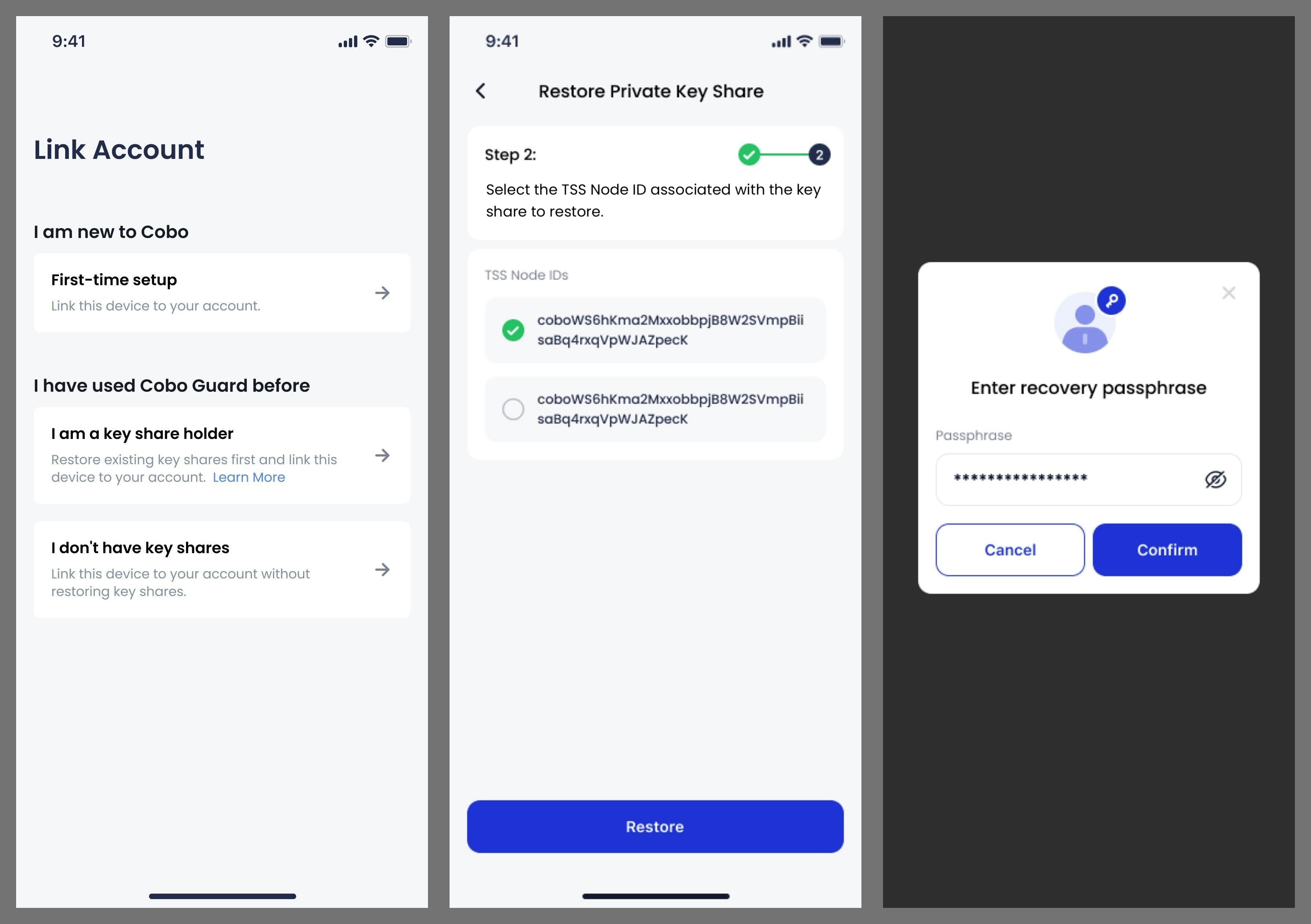 1. Open Cobo Guard on your new device and select **I am a key share holder**. Cobo Guard will begin checking your key share files.
2. Select the TSS Node ID associated with the key share you wish to restore, then tap **Restore**.
3. Enter the recovery passphrase you previously set when creating the backup, then tap **Confirm**.
4. Once restored, Cobo Guard will display **Key share successfully restored**. You can go to → **My Public Key** to verify your TSS Node ID is the same as the one shown in Cobo Accounts.
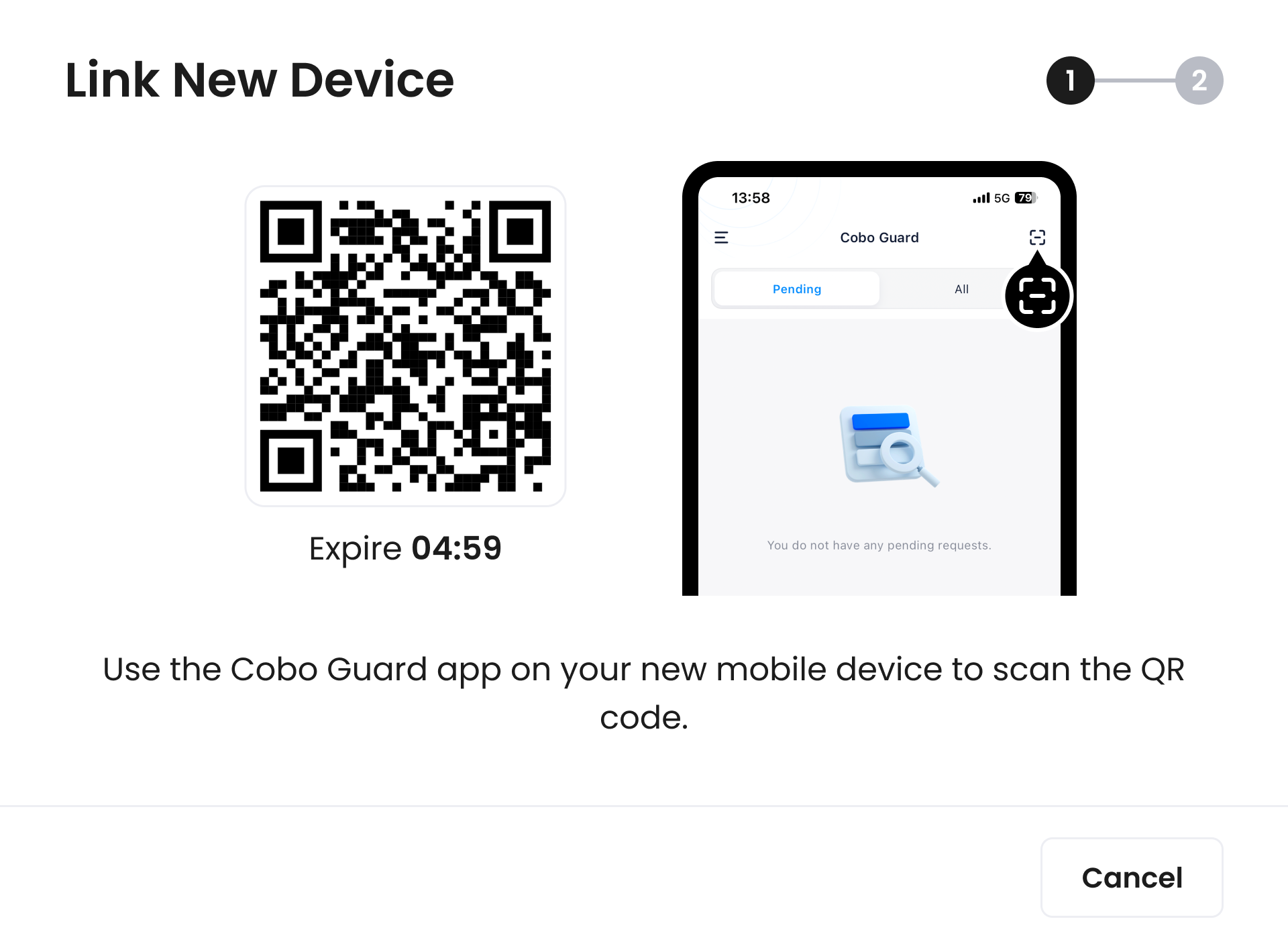
After you complete all the items prompted in the dialog on the **Cobo Accounts** page, click **Link New Device**. Below are the detailed instructions for linking a new device:
1. Use Cobo Guard on your new device to scan the QR code that's displayed in the dialog on the Cobo Accounts page.
1. Open Cobo Guard on your new device and select **I am a key share holder**. Cobo Guard will begin checking your key share files.
2. Select the TSS Node ID associated with the key share you wish to restore, then tap **Restore**.
3. Enter the recovery passphrase you previously set when creating the backup, then tap **Confirm**.
4. Once restored, Cobo Guard will display **Key share successfully restored**. You can go to → **My Public Key** to verify your TSS Node ID is the same as the one shown in Cobo Accounts.
After you complete all the items prompted in the dialog on the **Cobo Accounts** page, click **Link New Device**. Below are the detailed instructions for linking a new device:
1. Use Cobo Guard on your new device to scan the QR code that's displayed in the dialog on the Cobo Accounts page.
 2. With your account successfully linked, the [Cobo Accounts](https://accounts.cobo.com/) page will display a **Security Verification** dialog.
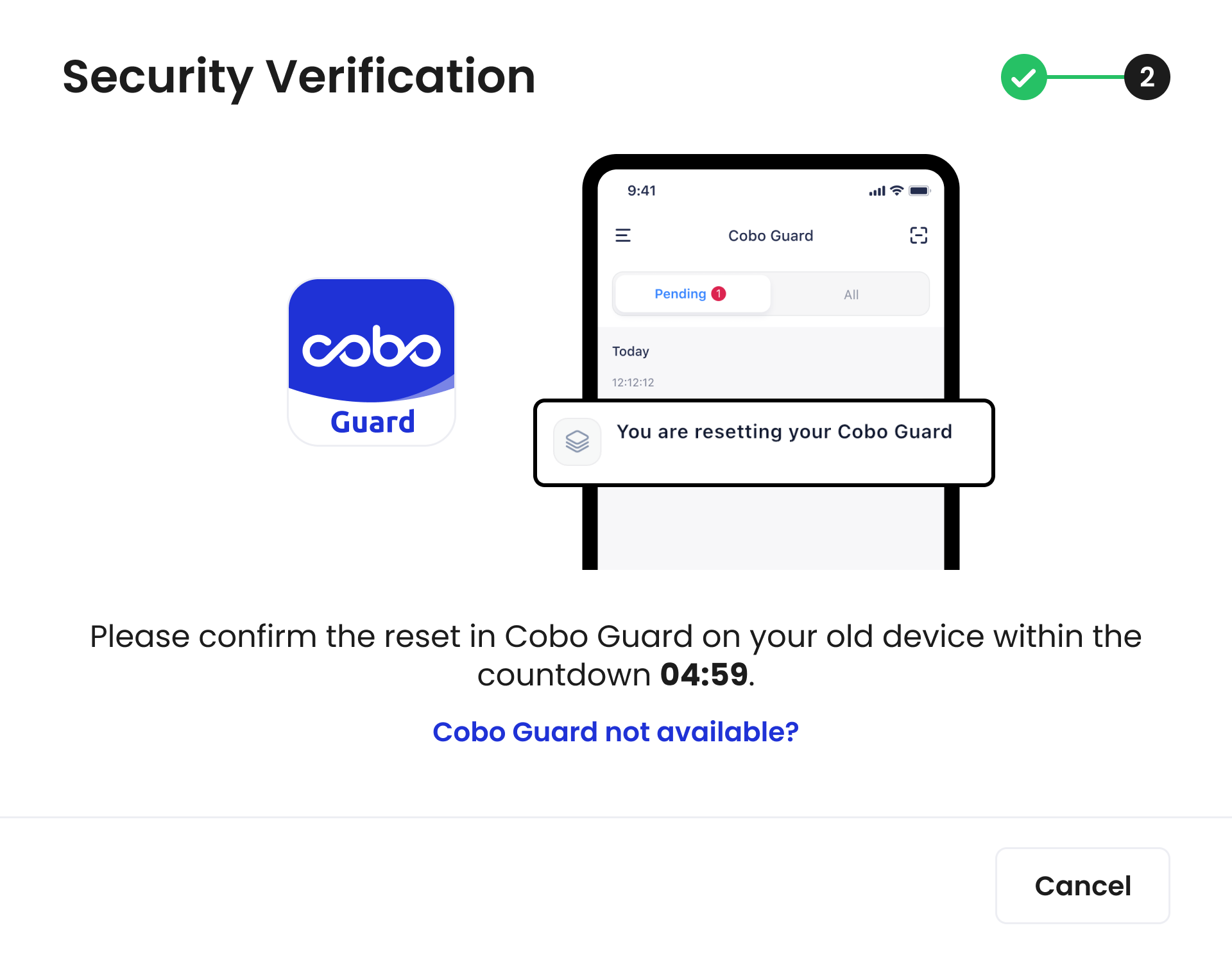 3. On your old device, open Cobo Guard and tap **Approve**.
4. With successful authentication, you will be redirected to the **MFA Management** tab. In the Cobo Guard on your new device, tap and then **My Accounts**, you will see the email to which your Cobo Accounts is linked. That means your Cobo Guard has been successfully linked to Cobo Accounts.
Now you have completed the reset process.
#### Scenario 2: Old device unavailable + backup available
If Cobo Guard on your old device is unavailable, but a valid backup exists and you remember the iCloud account and recovery passphrase, you will be prompted to complete the following items:
3. On your old device, open Cobo Guard and tap **Approve**.
4. With successful authentication, you will be redirected to the **MFA Management** tab. In the Cobo Guard on your new device, tap and then **My Accounts**, you will see the email to which your Cobo Accounts is linked. That means your Cobo Guard has been successfully linked to Cobo Accounts.
Now you have completed the reset process.
#### Scenario 2: Old device unavailable + backup available
If Cobo Guard on your old device is unavailable, but a valid backup exists and you remember the iCloud account and recovery passphrase, you will be prompted to complete the following items:
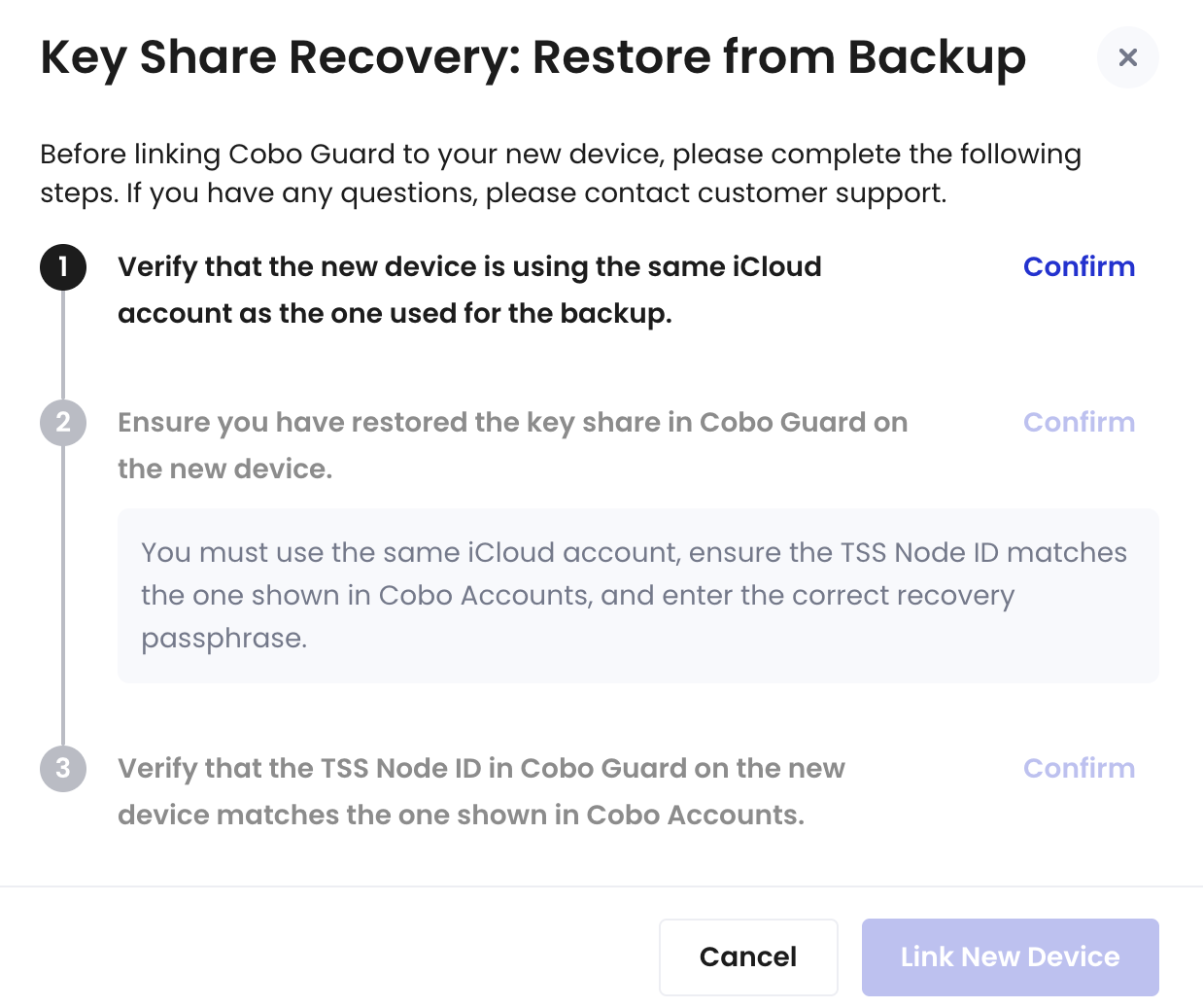 For step 3 (restoring your key share), below are detailed instructions:
1. Open Cobo Guard on your new device and select **I am a key share holder**. Cobo Guard will begin checking your key share files.
2. Select the TSS Node ID associated with the key share you want to restore (make sure it's the same as the TSS Node ID shown in your Cobo Accounts), then tap **Restore**.
3. Enter the recovery passphrase you previously set when creating the backup, then tap **Confirm**.
4. Once restored, Cobo Guard will display **Key share successfully restored**. You can go to → **My Public Key** to verify your TSS Node ID is the same as the one shown in Cobo Accounts.
After you complete all the items prompted in the dialog on the **Cobo Accounts** page, click **Link New Device**. Below are the detailed instructions for linking a new device:
1. Use Cobo Guard on your new device to scan the QR code that's displayed in the dialog on the Cobo Accounts page.
2. With your account successfully linked, the [Cobo Accounts](https://accounts.cobo.com/) page will display a **Security Verification** dialog. Click **Cobo Guard not available?**, and use another MFA method for authentication.
If you have not set up any other MFA method, please contact [support](mailto:help@cobo.com).
3. With successful authentication, you will be redirected to the **MFA Management** tab. In the Cobo Guard on your new device, tap and then **My Accounts**, you will see the email to which your Cobo Accounts is linked. That means your Cobo Guard has been successfully linked to Cobo Accounts.
As you used another MFA method instead of Cobo Guard for the authentication in the previous step, your Cobo Accounts will be temporarily frozen. An [Admin](/en/portal/organization/roles-and-permissions) from your organization will need to unfreeze it. If you are the only member of your organization, the whole organization will be frozen for 24 hours. You can log in to the Cobo Portal after this period.
Now you have completed the reset process.
#### Scenario 3: Old device unavailable + no valid backup
The system will prompt you to [**contact support**](mailto:help@cobo.com) for manual assistance.
## For Cobo Guard users who haven't created key shares
This flow links your new device but does not restore any key share. If you participate in MPC Wallet key management as a key share holder, do not use this flow. Selecting **I don't have key shares** lets you log in to Cobo Accounts and Cobo Portal, but it does not restore your key share, so you will stop receiving signing and transaction approval requests without any notification. Follow the steps in [For Cobo Guard users who are key share holders](#key-share-holders) instead.
1. Go to the **MFA Management** section of [Cobo Accounts](https://accounts.cobo.com/) and click **Reset** next to Cobo Guard to start the reset flow, which will guide you to the **Link New Device** dialog.
2. [Download Cobo Guard](/en/guard/download) on your new device.
3. Open Cobo Guard on your new device, select **I don't have key shares**, and scan the QR code that's displayed in the dialog on the Cobo Accounts page.
4. With your account successfully linked, the [Cobo Accounts](https://accounts.cobo.com/) page will display a **Security Verification** dialog.
5. If you can access your old device, open Cobo Guard on it and choose **Approve**. Otherwise, click **Cobo Guard not available?**, and use another MFA method for authentication.
If you have not set up any other MFA method, please contact [support](mailto:help@cobo.com).
6. With successful authentication, you will be redirected to the **MFA Management** tab. In the Cobo Guard on your new device, tap and then **My Accounts**, you will see the email to which your Cobo Accounts is linked. That means your Cobo Guard has been successfully linked to Cobo Accounts.
If you use another MFA method instead of Cobo Guard for the authentication in the previous step, your Cobo Accounts will be temporarily frozen. An [Admin](/en/portal/organization/roles-and-permissions) from your organization will need to unfreeze it. If you are the only member of your organization, the whole organization will be frozen for 24 hours. You can log in to the Cobo Portal after this period.
Now you have completed the reset process.
For step 3 (restoring your key share), below are detailed instructions:
1. Open Cobo Guard on your new device and select **I am a key share holder**. Cobo Guard will begin checking your key share files.
2. Select the TSS Node ID associated with the key share you want to restore (make sure it's the same as the TSS Node ID shown in your Cobo Accounts), then tap **Restore**.
3. Enter the recovery passphrase you previously set when creating the backup, then tap **Confirm**.
4. Once restored, Cobo Guard will display **Key share successfully restored**. You can go to → **My Public Key** to verify your TSS Node ID is the same as the one shown in Cobo Accounts.
After you complete all the items prompted in the dialog on the **Cobo Accounts** page, click **Link New Device**. Below are the detailed instructions for linking a new device:
1. Use Cobo Guard on your new device to scan the QR code that's displayed in the dialog on the Cobo Accounts page.
2. With your account successfully linked, the [Cobo Accounts](https://accounts.cobo.com/) page will display a **Security Verification** dialog. Click **Cobo Guard not available?**, and use another MFA method for authentication.
If you have not set up any other MFA method, please contact [support](mailto:help@cobo.com).
3. With successful authentication, you will be redirected to the **MFA Management** tab. In the Cobo Guard on your new device, tap and then **My Accounts**, you will see the email to which your Cobo Accounts is linked. That means your Cobo Guard has been successfully linked to Cobo Accounts.
As you used another MFA method instead of Cobo Guard for the authentication in the previous step, your Cobo Accounts will be temporarily frozen. An [Admin](/en/portal/organization/roles-and-permissions) from your organization will need to unfreeze it. If you are the only member of your organization, the whole organization will be frozen for 24 hours. You can log in to the Cobo Portal after this period.
Now you have completed the reset process.
#### Scenario 3: Old device unavailable + no valid backup
The system will prompt you to [**contact support**](mailto:help@cobo.com) for manual assistance.
## For Cobo Guard users who haven't created key shares
This flow links your new device but does not restore any key share. If you participate in MPC Wallet key management as a key share holder, do not use this flow. Selecting **I don't have key shares** lets you log in to Cobo Accounts and Cobo Portal, but it does not restore your key share, so you will stop receiving signing and transaction approval requests without any notification. Follow the steps in [For Cobo Guard users who are key share holders](#key-share-holders) instead.
1. Go to the **MFA Management** section of [Cobo Accounts](https://accounts.cobo.com/) and click **Reset** next to Cobo Guard to start the reset flow, which will guide you to the **Link New Device** dialog.
2. [Download Cobo Guard](/en/guard/download) on your new device.
3. Open Cobo Guard on your new device, select **I don't have key shares**, and scan the QR code that's displayed in the dialog on the Cobo Accounts page.
4. With your account successfully linked, the [Cobo Accounts](https://accounts.cobo.com/) page will display a **Security Verification** dialog.
5. If you can access your old device, open Cobo Guard on it and choose **Approve**. Otherwise, click **Cobo Guard not available?**, and use another MFA method for authentication.
If you have not set up any other MFA method, please contact [support](mailto:help@cobo.com).
6. With successful authentication, you will be redirected to the **MFA Management** tab. In the Cobo Guard on your new device, tap and then **My Accounts**, you will see the email to which your Cobo Accounts is linked. That means your Cobo Guard has been successfully linked to Cobo Accounts.
If you use another MFA method instead of Cobo Guard for the authentication in the previous step, your Cobo Accounts will be temporarily frozen. An [Admin](/en/portal/organization/roles-and-permissions) from your organization will need to unfreeze it. If you are the only member of your organization, the whole organization will be frozen for 24 hours. You can log in to the Cobo Portal after this period.
Now you have completed the reset process.