> ## Documentation Index
> Fetch the complete documentation index at: https://manuals.cobo.com/llms.txt
> Use this file to discover all available pages before exploring further.
# Set up and update transaction policies
> Learn how to set up and update transaction policies in Cobo Portal after installing apps, ensuring compliance and efficiency.
This article describes how to set up and update [transaction policies](/en/portal/risk-controls/tx-policies-overview) after installing Cobo Portal Apps.
1. Log into [Cobo Portal](https://portal.cobo.com/login).
2. Click **Apps** in the left sidebar to open the **Apps** page.
3. In the **All Apps** section or the **Installed Apps** section, click  on an app to open the **App Management** page.
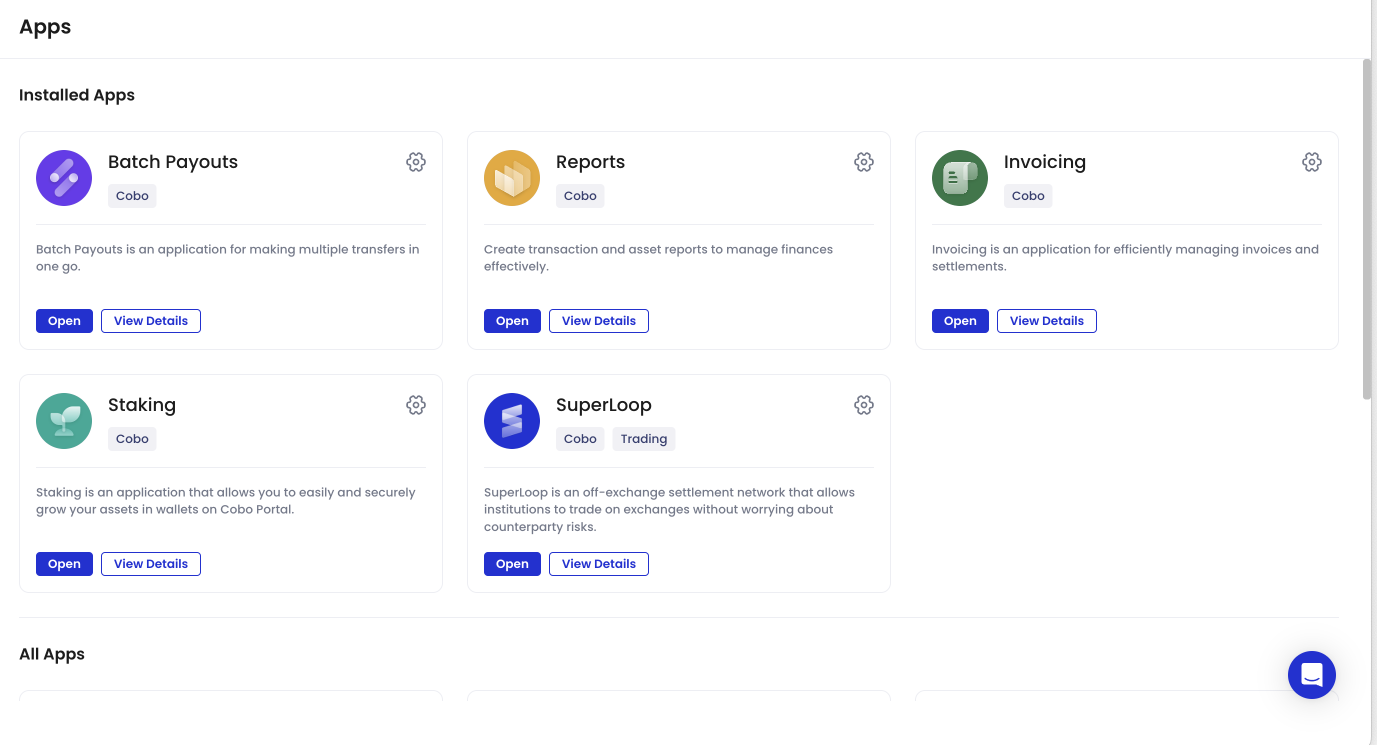 4. On the **App Management** page, switch to the **Transaction Policies** tab.
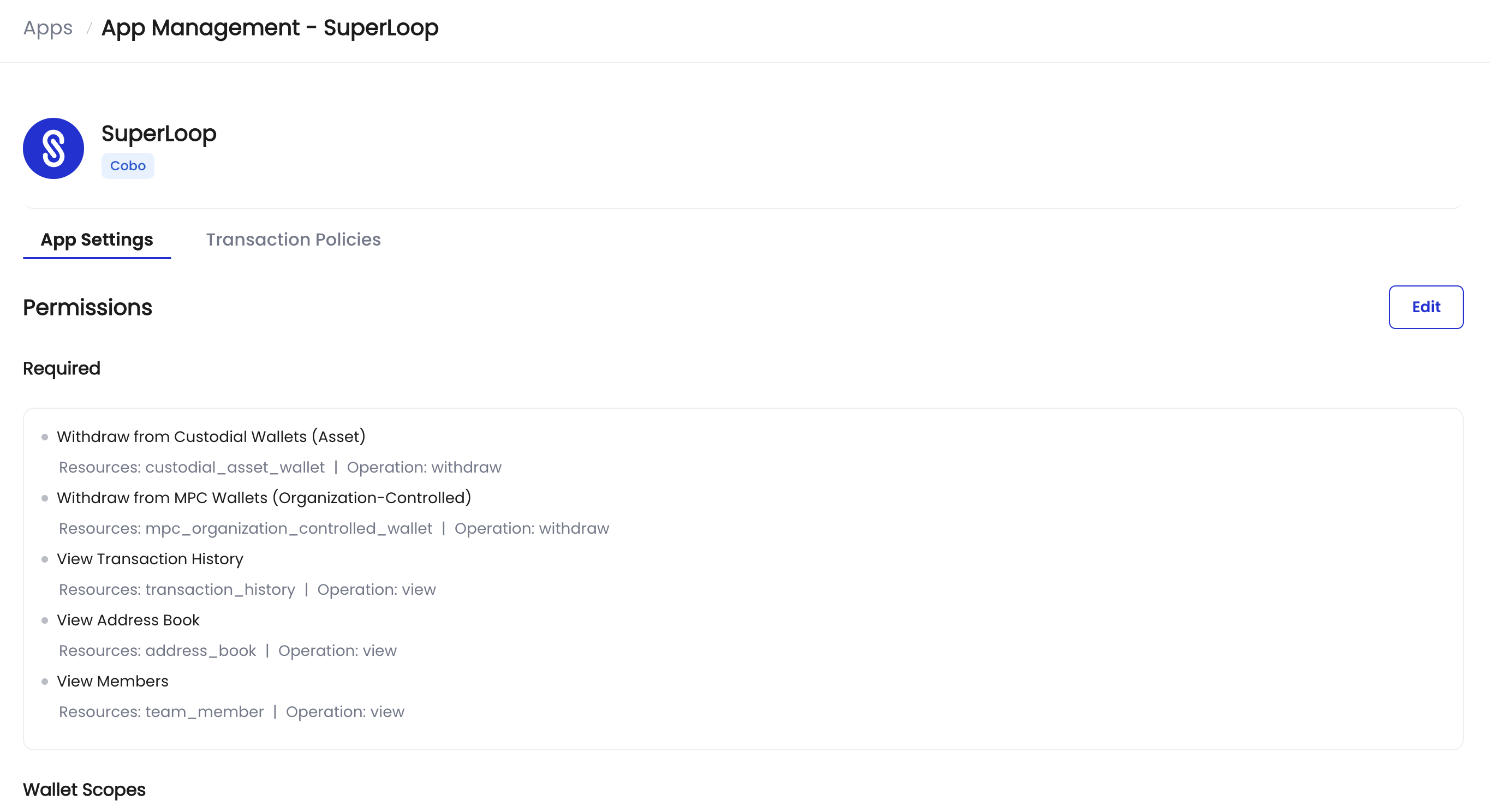 If you install an app that requires transaction policies, there will be a reminder message on both the Apps page and the app overview page. These reminders can redirect you to the Transaction Policies tab.
5. On the **Transaction Policies** tab, you can view the transaction policies applicable to the app. If a transaction policy is applicable to the app, it means the app is one of the conditions of the transaction policy, or the transaction policy is relevant to the wallets you allow the app to access.
Different apps might have different default transaction policies.
If you install an app that requires transaction policies, there will be a reminder message on both the Apps page and the app overview page. These reminders can redirect you to the Transaction Policies tab.
5. On the **Transaction Policies** tab, you can view the transaction policies applicable to the app. If a transaction policy is applicable to the app, it means the app is one of the conditions of the transaction policy, or the transaction policy is relevant to the wallets you allow the app to access.
Different apps might have different default transaction policies.
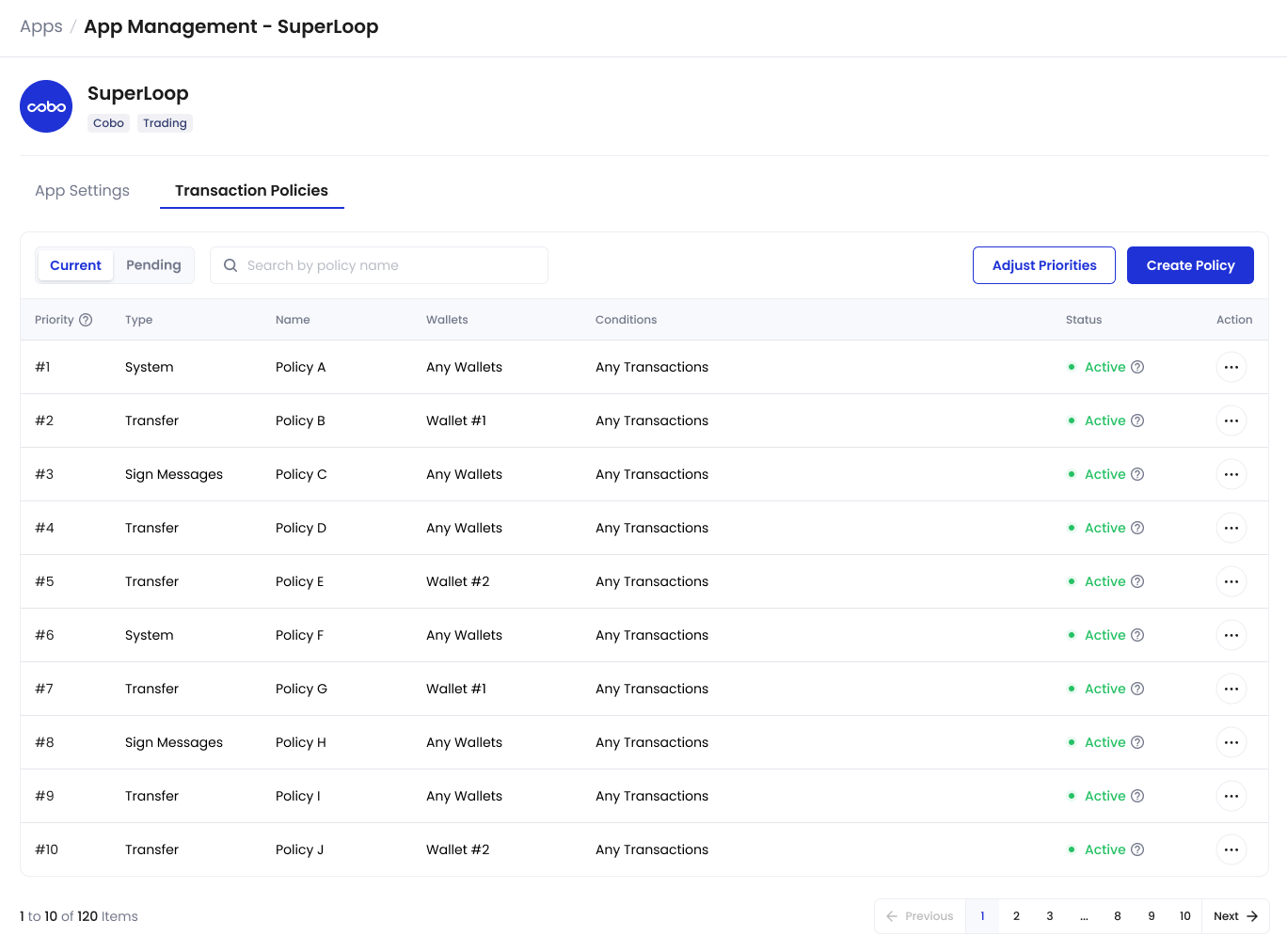 * To create a new transaction policy for the app, click **Create Policy** and choose **Token Transfer** to open the **Create Transfer Policy** page, or choose **Contract Call** to open the **Create Contract Call Policy** page. There you can create new transaction policies with conditions applied specifically to this app or any app as the transaction initiator. For how to set up transaction policies, see [Introduction to transaction policies](/en/portal/risk-controls/tx-policies-overview).
* To adjust the priorities of the transaction policies, click **Adjust Priorities** to open the **Adjust Priorities** page.
* To view the details of a transaction policy, click
* To create a new transaction policy for the app, click **Create Policy** and choose **Token Transfer** to open the **Create Transfer Policy** page, or choose **Contract Call** to open the **Create Contract Call Policy** page. There you can create new transaction policies with conditions applied specifically to this app or any app as the transaction initiator. For how to set up transaction policies, see [Introduction to transaction policies](/en/portal/risk-controls/tx-policies-overview).
* To adjust the priorities of the transaction policies, click **Adjust Priorities** to open the **Adjust Priorities** page.
* To view the details of a transaction policy, click  .
* To manage a transaction policy, click
.
* To manage a transaction policy, click  in the **Operation** column and select the corresponding action such as **Transactions**, **Revisions**, **Edit**, and **Delete**.