> ## Documentation Index
> Fetch the complete documentation index at: https://manuals.cobo.com/llms.txt
> Use this file to discover all available pages before exploring further.
# View staking positions and activity
> Understand how to view your staking positions and rewards va Cobo Portal, ensuring transparency in your staking operations.
The Staking app supports staking BTC ([Babylon](https://babylonlabs.io/)) and ETH ([Beacon Chain](https://ethereum.org/en/roadmap/beacon-chain/)) within [MPC Wallets](/en/portal/mpc-wallets/introduction) in [Organization-Controlled Vaults](/en/portal/mpc-wallets/ocw/create-mpc-vault).
Prerequisite: All user roles can view staking positions and activity. To stake, unstake, or withdraw assets, you need to have the [Staker](/en/portal/organization/roles-and-permissions) role.
Select the **BTC** or **ETH** tab to view specific instructions for each.
1. Click **Apps** in the left sidebar of [Cobo Portal](https://portal.cobo.com/login), find **Staking**, then click **Open** to open Staking.
2. Click **View** under **Actions** in the row for Babylon.
3. On the staking details page, you can see an overview of the staked amount and rewards, followed by the **Staking Positions** and **Activity** sections.
## Staking positions
In the **Staking Positions** section, you can view details of your staking positions in rows, including staked amount, maturity date, withdrawable amount, and position status.
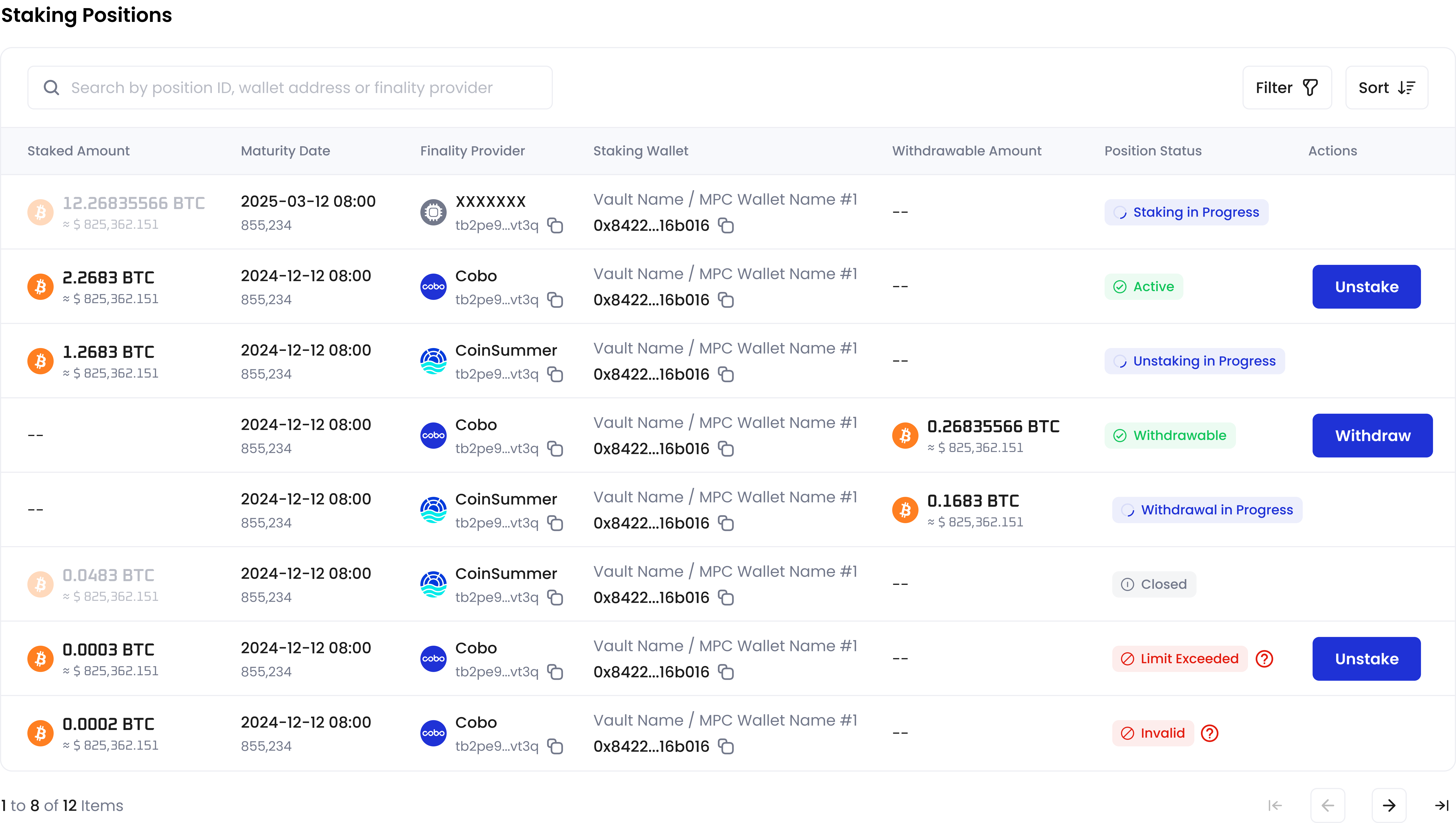 **Position Status** depends on the result of your staking operations. For detailed explanations, see the documentation for [Stake](/en/apps/staking/stake), [Unstake](/en/apps/staking/unstake), and [Withdraw](/en/apps/staking/withdraw).
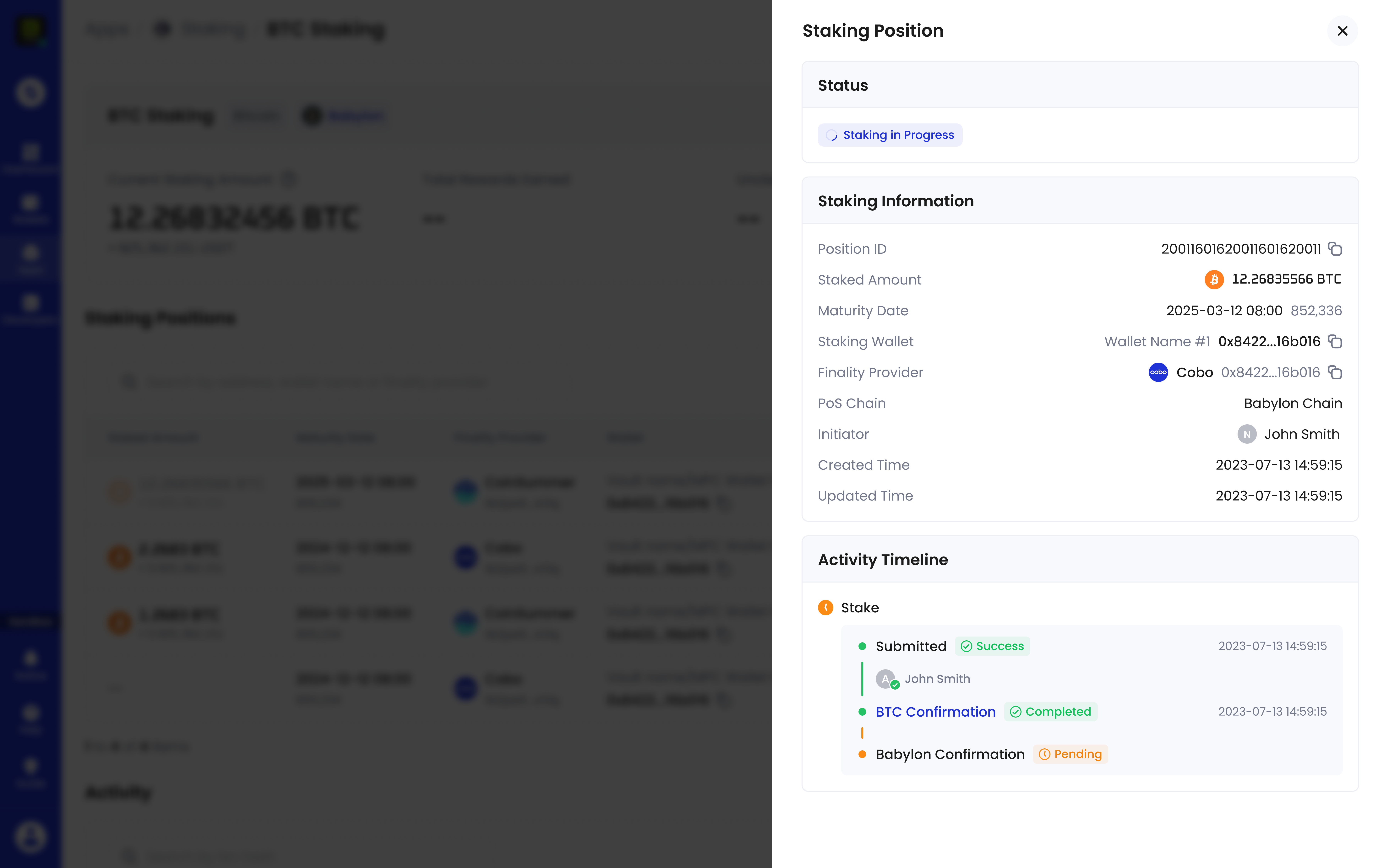
You can click the row of a staking position to view more details, including **Position ID** and **Activity Timeline**. In the **Activity Timeline** section, click the blue hyperlinked text (for example, **BTC Confirmation**) to view the detailed status of the step.
**Position Status** depends on the result of your staking operations. For detailed explanations, see the documentation for [Stake](/en/apps/staking/stake), [Unstake](/en/apps/staking/unstake), and [Withdraw](/en/apps/staking/withdraw).
You can click the row of a staking position to view more details, including **Position ID** and **Activity Timeline**. In the **Activity Timeline** section, click the blue hyperlinked text (for example, **BTC Confirmation**) to view the detailed status of the step.
 ## Activity
In the **Activity** section, you can view the history of your staking operations and their status.
## Activity
In the **Activity** section, you can view the history of your staking operations and their status.
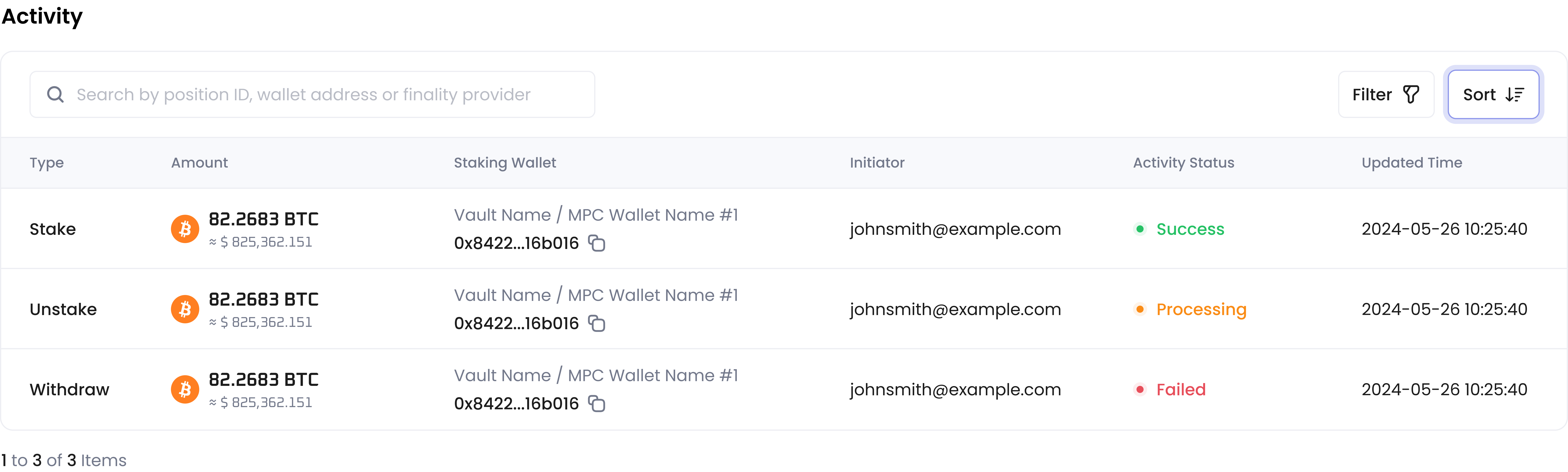 **Activity Status** depends on the result of your staking operations. For BTC staking with Babylon, the **Activity Status** stays as **Processing** before the transaction is confirmed by Babylon. If the transaction is rejected by risk control policies or signers, the status will be **Failed**. If it passes, depending on whether Babylon confirms the transaction, the final status will be **Success** or **Failed**.
Withdrawal does not require confirmation from Babylon; the status will be **Success** when it goes on-chain.
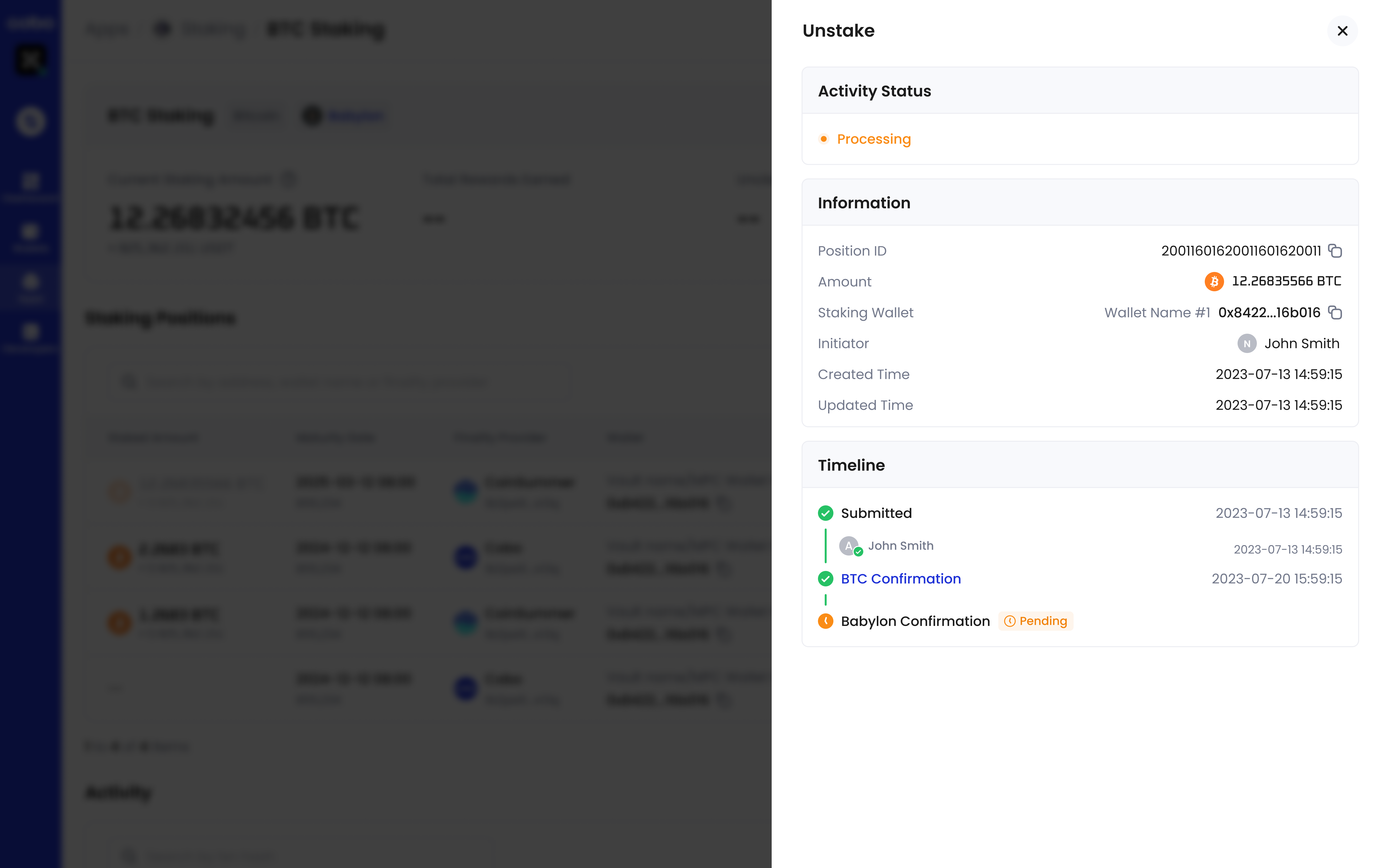
You can click the row of an activity to view more details, including **Position ID** and **Timeline**. In the **Timeline** section, click the blue hyperlinked text (for example, **BTC Confirmation**) to view the detailed status of the step.
**Activity Status** depends on the result of your staking operations. For BTC staking with Babylon, the **Activity Status** stays as **Processing** before the transaction is confirmed by Babylon. If the transaction is rejected by risk control policies or signers, the status will be **Failed**. If it passes, depending on whether Babylon confirms the transaction, the final status will be **Success** or **Failed**.
Withdrawal does not require confirmation from Babylon; the status will be **Success** when it goes on-chain.
You can click the row of an activity to view more details, including **Position ID** and **Timeline**. In the **Timeline** section, click the blue hyperlinked text (for example, **BTC Confirmation**) to view the detailed status of the step.
 1. Click **Apps** in the left sidebar of [Cobo Portal](https://portal.cobo.com/login), find **Staking**, then click **Open** to open Staking.
2. Click **View** under **Actions** in the row for Beacon Chain.
3. On the staking details page, you can see an overview of the staked amount and rewards, followed by the **Staking Positions** and **Activity** sections.
## Staking positions
In the **Staking Positions** section, you can view details of your staking positions in rows, including staked amount, rewards, and status.
1. Click **Apps** in the left sidebar of [Cobo Portal](https://portal.cobo.com/login), find **Staking**, then click **Open** to open Staking.
2. Click **View** under **Actions** in the row for Beacon Chain.
3. On the staking details page, you can see an overview of the staked amount and rewards, followed by the **Staking Positions** and **Activity** sections.
## Staking positions
In the **Staking Positions** section, you can view details of your staking positions in rows, including staked amount, rewards, and status.
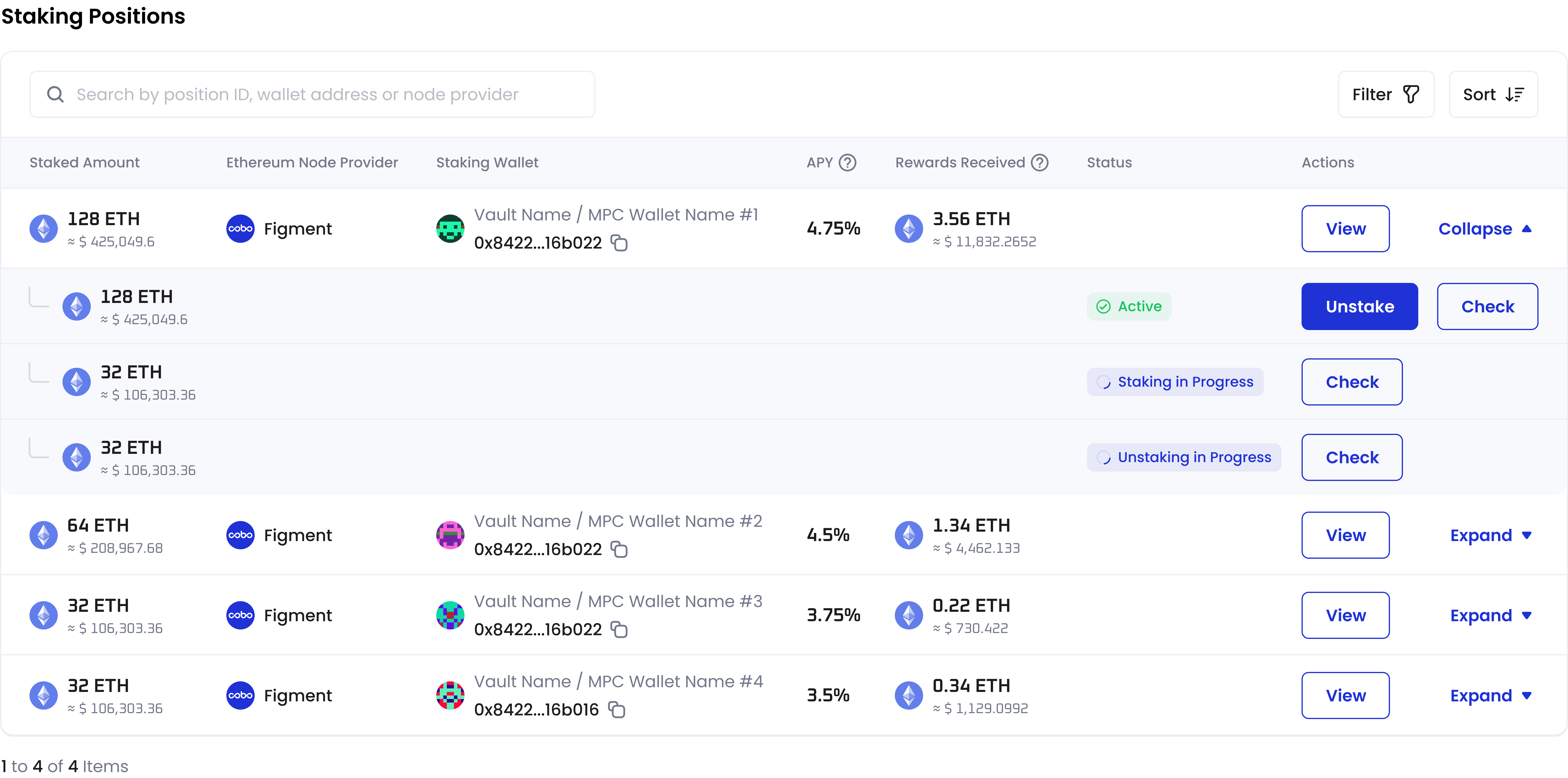 * **Staked Amount** only reflects ETH in the **Active** status.
* Click **Expand** to view detailed status of ETH under the position. **Status** depends on the result of your staking operations. For detailed explanations, see the documentation for [Stake](/en/apps/staking/stake) and [Unstake](/en/apps/staking/unstake) (go to the **ETH** tab first).
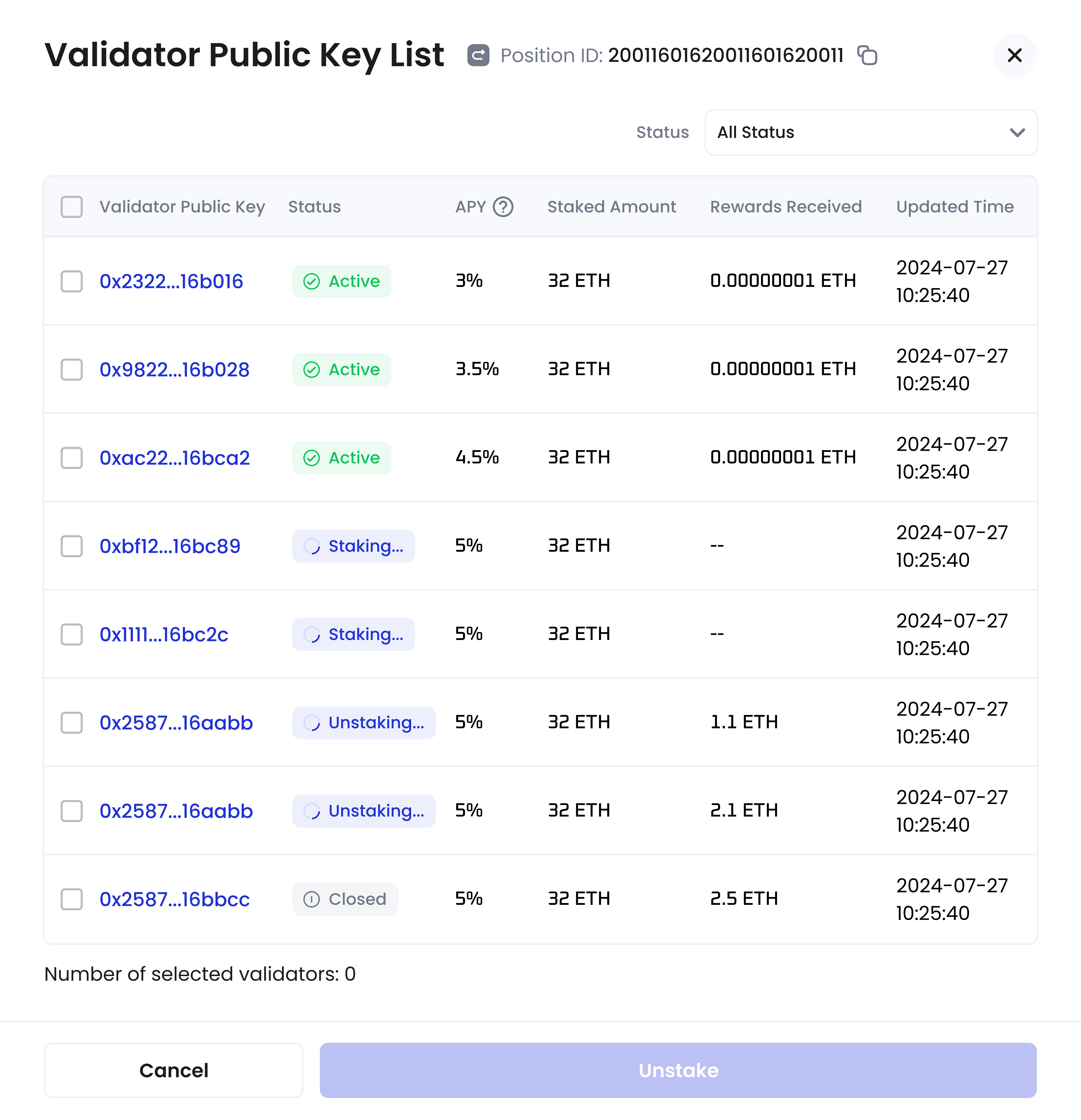
* Click **Check** in the row of ETH to view the corresponding validators and their status.
* Click **View** in the row of a staking position to view more details, including **Position ID**, **Validator Public Key**, and **Activity Timeline**.
* **Staked Amount** only reflects ETH in the **Active** status.
* Click **Expand** to view detailed status of ETH under the position. **Status** depends on the result of your staking operations. For detailed explanations, see the documentation for [Stake](/en/apps/staking/stake) and [Unstake](/en/apps/staking/unstake) (go to the **ETH** tab first).
* Click **Check** in the row of ETH to view the corresponding validators and their status.
* Click **View** in the row of a staking position to view more details, including **Position ID**, **Validator Public Key**, and **Activity Timeline**.
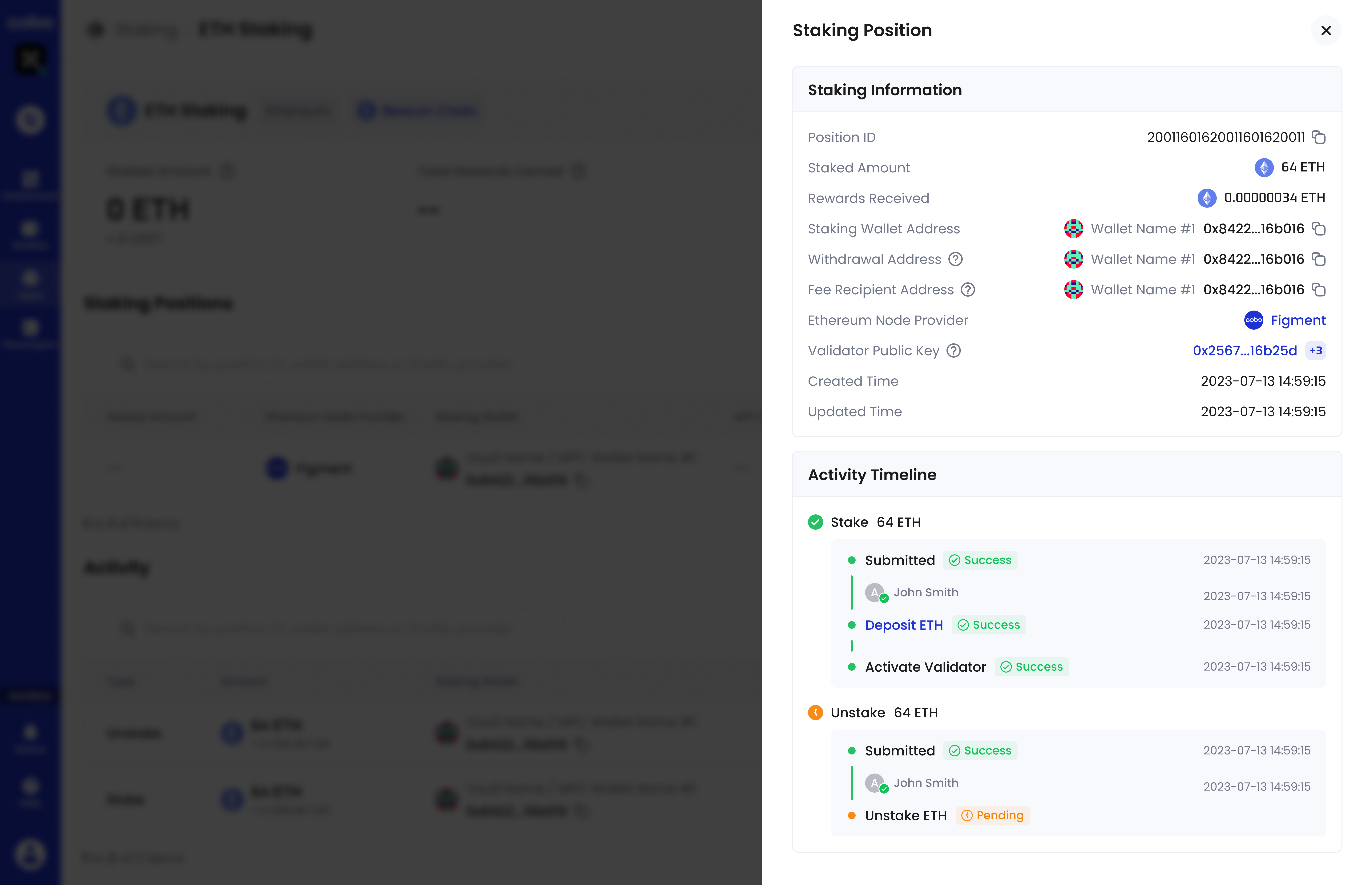 * In the **Activity Timeline** section, click the blue hyperlinked text (for example, Deposit ETH) to view the detailed status of the step.
* In the **Staking Information** section, you can click the number in the **Validator Public Key** field to view the full list of validators for the staking position.
* In the **Activity Timeline** section, click the blue hyperlinked text (for example, Deposit ETH) to view the detailed status of the step.
* In the **Staking Information** section, you can click the number in the **Validator Public Key** field to view the full list of validators for the staking position.
 ## Activity
In the **Activity** section, you can view the history of your staking operations and their status.
## Activity
In the **Activity** section, you can view the history of your staking operations and their status.
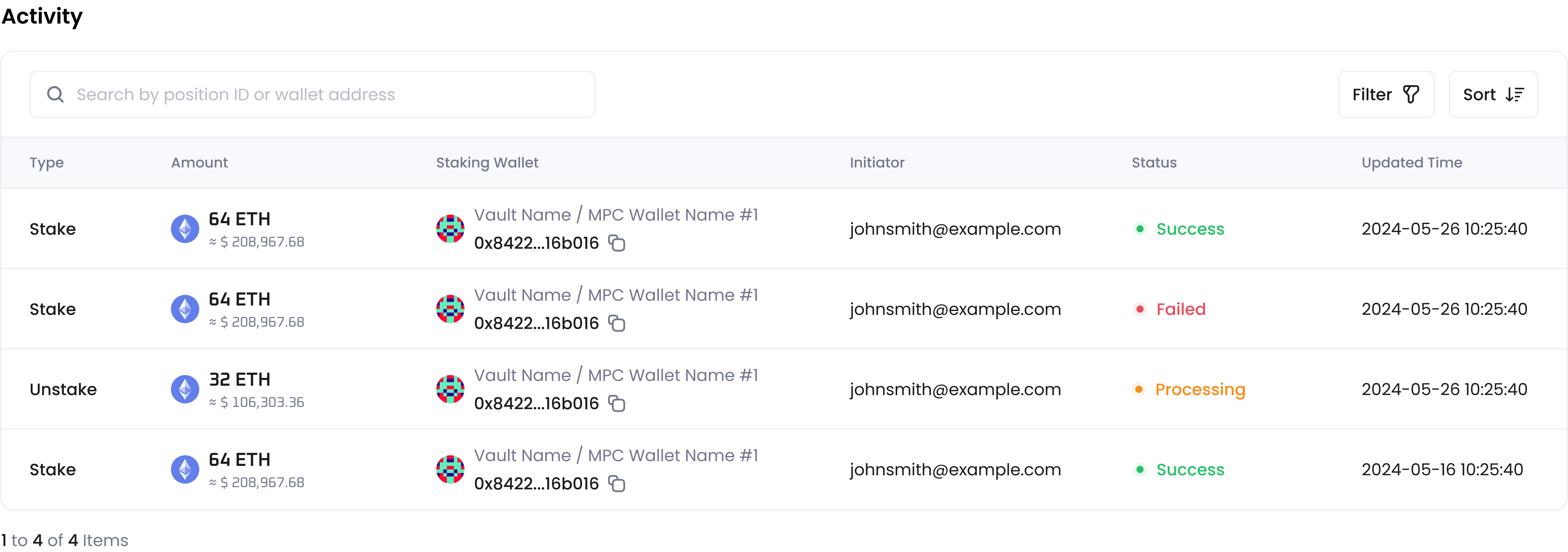 **Status** depends on the result of your staking operations. For detailed explanations, see the documentation for [Stake](/en/apps/staking/stake) and [Unstake](/en/apps/staking/unstake) (go to the **ETH** tab first).
You can click the row of an activity to view more details, including **Position ID**, **Validator Public Key**, and **Timeline**. In the **Timeline** section, click the blue hyperlinked text (for example, **Deposit ETH**) to view the detailed status of the step.
**Status** depends on the result of your staking operations. For detailed explanations, see the documentation for [Stake](/en/apps/staking/stake) and [Unstake](/en/apps/staking/unstake) (go to the **ETH** tab first).
You can click the row of an activity to view more details, including **Position ID**, **Validator Public Key**, and **Timeline**. In the **Timeline** section, click the blue hyperlinked text (for example, **Deposit ETH**) to view the detailed status of the step.